
Problem scenario:
My goal is to write data from my database to PLC using MODBUS.
It is assumed that:
You have configured the communication settings on the device:
Solution:
1. Create a new configuration from the main window using the “Green Plus” button. (fig. 1). You usually need to select the “TCP/IP” interface type for MODBUS TCP and “RS232” for MODBUS RTU. This example shows the connection settings for MODBUS TCP. If your device uses MODBUS RTU, look here
. If you’ve already configured the connection, then go to step #2.
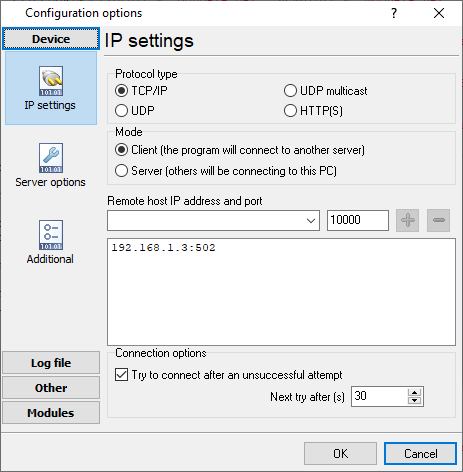
Fig. 1: IP connection settings
2. Go to the “Modules – Query Parser Filter” page. Select the “MODBUS TCP” or “MODBUS RTU” plugin from lists. Then click the “Setup” button.
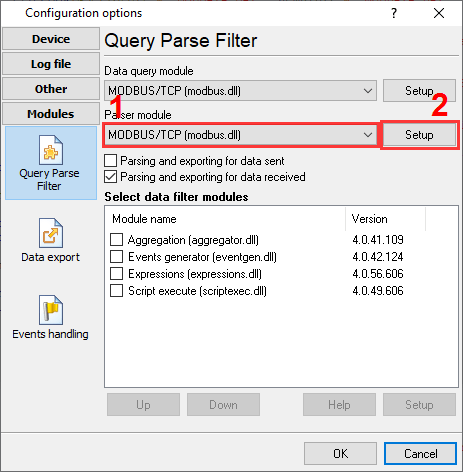
Fig. 2: Selecting the MODBUS plugin
3. Click “Action – Add request” and add new requests to write data (fig. 3-5).
3.1. Set the correct function code. The MODBUS function code should be:
3.2. The number of registers:
3.3. The MODBUS address does not matter. The plugin will receive it from a database.
3.4. Select the “Event” request method. Then specify the event identifier like “WRITE-INT,” “WRITE-FLOAT,” “WRITE-UINT16”. You may use other identifiers but should change them in the next steps too.
Note:You should add a separate request with a different event ID for each data type. For example, one request writes “int” values, another one “float” values.
3.5. Add only one response item to each request with the “VALUE” name.
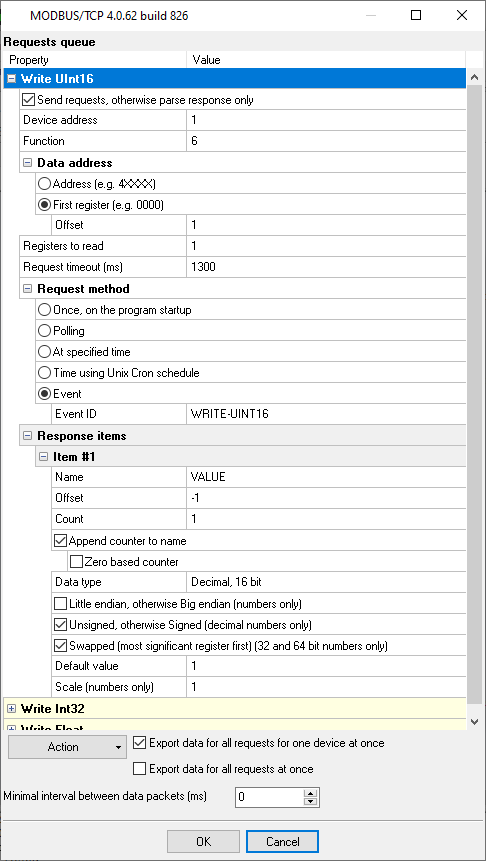
Fig. 3: Adding the “Write” request
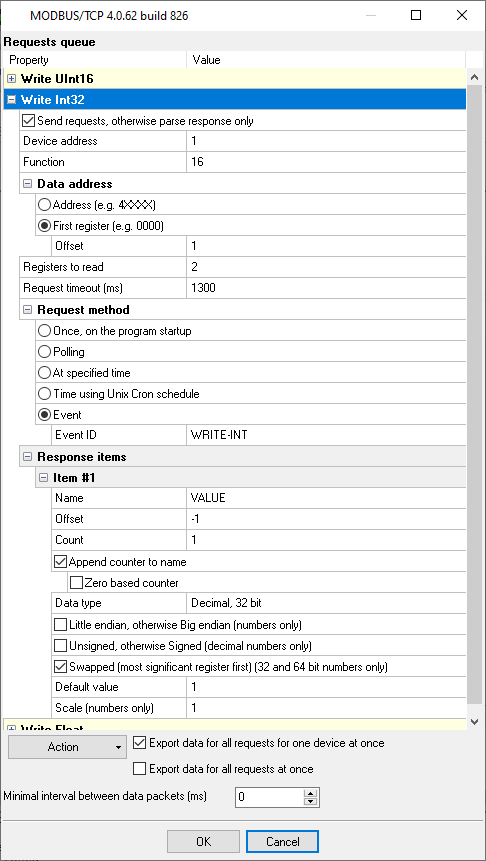
Fig. 4: Writing Int32
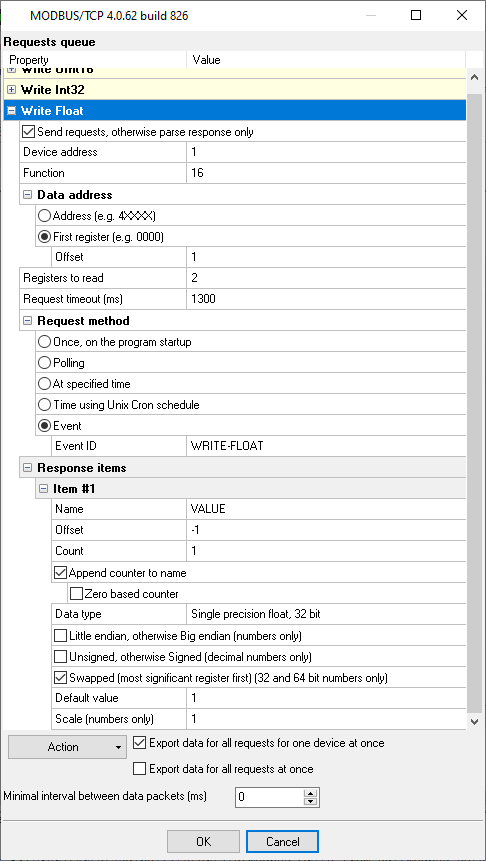
Fig. 5: Writing Float
4. Prepare a table in your SQL database. You may use the following prototypes. The table will contain one row for each register. The “DATE_TIME_STAMP” column specifies the time when the value is changed last time. The logger will use this column to read updates from the table.
Below you can find some table-creating scripts that we recommend to use.
CREATE TABLE [dbo].[MODBUS_DATA_WRITE] ( [ID] [decimal](10, 0) IDENTITY(1,1) NOT NULL, [DATE_TIME_STAMP] [datetime] NULL DEFAULT (getdate()), [DATA_SOURCE] [nvarchar](32) NOT NULL, [DEVICE_ID] [int] NOT NULL, [OFFSET] [int] NULL, [VALUE1] [int] NULL, [VALUE2] [float] NULL, [VALUE3] [smallint] NULL CONSTRAINT [PK_MODBUS_DATA_WRITE] PRIMARY KEY CLUSTERED ( [ID] ASC )WITH (IGNORE_DUP_KEY = OFF) ON [PRIMARY] ) ON [PRIMARY] GO CREATE TRIGGER dbo.MODBUS_DATA_WRITE_TRIGGER ON dbo.MODBUS_DATA_WRITE AFTER UPDATE AS BEGIN SET NOCOUNT ON UPDATE dbo.MODBUS_DATA_WRITE SET DATE_TIME_STAMP = GETDATE() FROM INSERTED WHERE INSERTED.ID = MODBUS_DATA_WRITE.ID END GO CREATE TABLE `MODBUS_DATA_WRITE` ( `ID` int(11) NOT NULL auto_increment, `DATE_TIME_STAMP` DATETIME NULL, `DATA_SOURCE_NAME` VARCHAR(32) NOT NULL, `DEVICE_ID` INTEGER NOT NULL, `OFFSET` INTEGER NULL, `VALUE1` INTEGER NULL, `VALUE2` DOUBLE NULL, `VALUE3` INTEGER NULL, PRIMARY KEY (`ID`) ) ENGINE=InnoDB; CREATE TRIGGER MODBUS_DATA_WRITE_BI BEFORE INSERT ON `MODBUS_DATA_WRITE` FOR EACH ROW SET NEW.DATE_TIME_STAMP = IFNULL(NEW.DATE_TIME_STAMP, NOW()); CREATE TRIGGER MODBUS_DATA_WRITE_BU BEFORE UPDATE ON `MODBUS_DATA_WRITE` FOR EACH ROW SET NEW.DATE_TIME_STAMP = IFNULL(NEW.DATE_TIME_STAMP, NOW());CREATE TABLE "MODBUS_DATA_WRITE" ( "ID" SERIAL, "DATE_TIME_STAMP" timestamp DEFAULT NULL, "DATA_SOURCE_NAME" varchar(32) NOT NULL, "DEVICE_ID" integer NOT NULL, "OFFSET" integer NULL, "VALUE1" integer NULL, "VALUE2" real NULL, "VALUE3" integer NULL, PRIMARY KEY ("ID") ); CREATE OR REPLACE FUNCTION MODBUS_DATA_WRITE_BI_TRIGGER() RETURNS trigger AS $BODY$ BEGIN NEW.DATE_TIME_STAMP := COALESCE(NEW.DATE_TIME_STAMP, NOW()); RETURN NEW; END; $BODY$ LANGUAGE plpgsql; CREATE TRIGGER MODBUS_DATA_WRITE_BI BEFORE INSERT ON "MODBUS_DATA_WRITE" FOR EACH ROW EXECUTE PROCEDURE MODBUS_DATA_WRITE_BI_TRIGGER(); CREATE TRIGGER MODBUS_DATA_WRITE_BU BEFORE UPDATE ON "MODBUS_DATA_WRITE" FOR EACH ROW EXECUTE PROCEDURE MODBUS_DATA_WRITE_BI_TRIGGER(); 5. Create a new configuration with the SQL interface by clicking the “Green Plus” button in the main window.
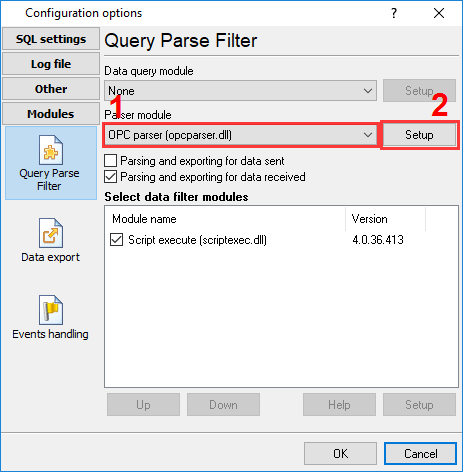
Fig. 6: Adding the SQL data source
6. Configure connection with your database ( Documentation).
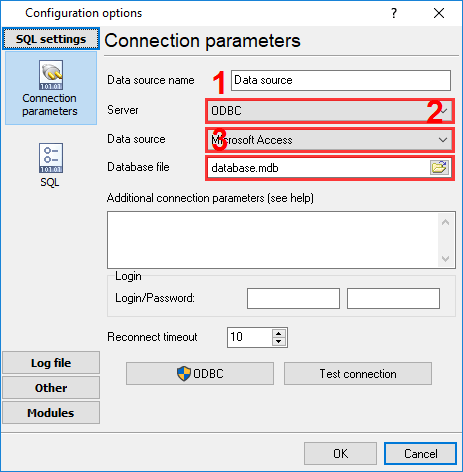
Fig. 7: Database connection settings
7. Specify the name of your database table, the polling interval, and the “DATE_TIME_STAMP” field name.
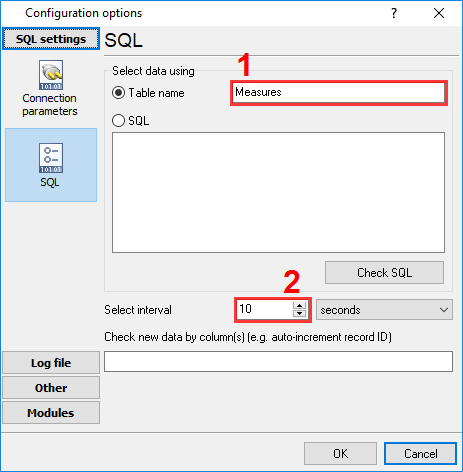
Fig. 8: Database table
When the SQL interface reads data, it appears in the main window.
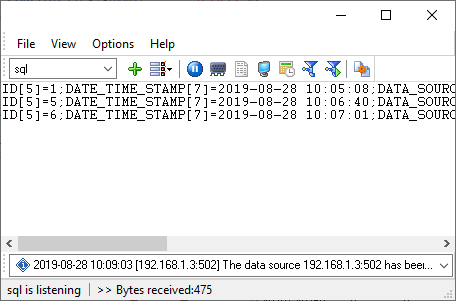
Fig. 9: SQL data
8. Select the “OPC parser” plugin. This plugin does not have any settings.
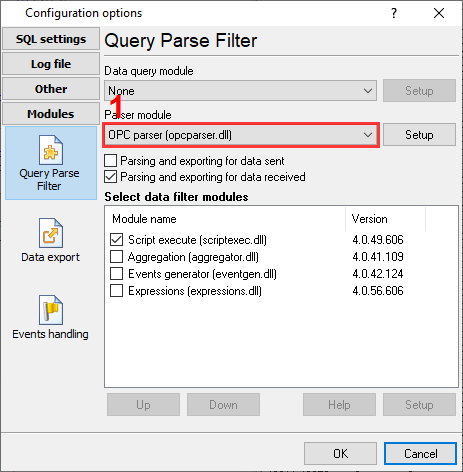
Fig. 10: Parser plugin
9. Script execute – this plugin executes a script and sends values from the database table to the necessary data source (an IP address or an RS232 port), a device, and an address.
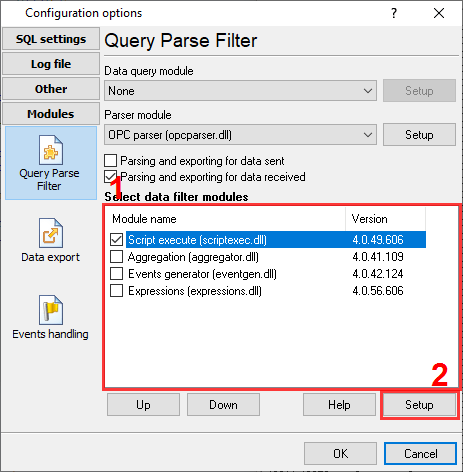
Fig. 11: Script Execute plugin
10. Copy and paste the following script.
var device, addr: integer; v1, v2, v3: variant; strTargetDataSource: string; begin strTargetDataSource := GetVariable('DATA_SOURCE'); device := GetVariable('DEVICE_ID'); // MODBUS device ID addr := GetVariable('OFFSET'); // MODBUS memory offset v1 := GetVariable('VALUE1'); // Int value v2 := GetVariable('VALUE2'); // Float value v3 := GetVariable('VALUE3'); // UInt16 value if VarToStr(v1) <> '' then SendEventEx('WRITE-INT', [ 'EVENT-TO-CFG', strTargetDataSource, 'DEVICE', device, 'ADDRESS', addr, 'VALUE', v1 ]); if VarToStr(v2) <> '' then SendEventEx('WRITE-FLOAT', [ 'EVENT-TO-CFG', strTargetDataSource, 'DEVICE', device, 'ADDRESS', addr, 'VALUE', v2 ]); if VarToStr(v3) <> '' then SendEventEx('WRITE-UINT16', [ 'EVENT-TO-CFG', strTargetDataSource, 'DEVICE', device, 'ADDRESS', addr, 'VALUE', v3 ]); end.
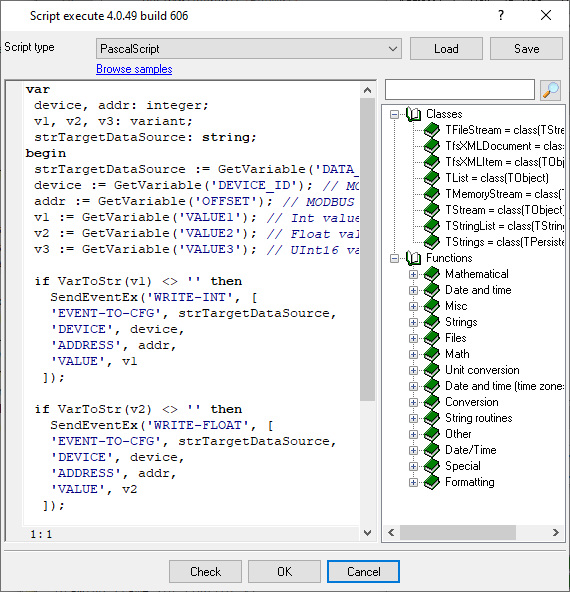
Fig. 12: Script
11. Now, the application works in the following way:
12. You may execute a SQL statement like the following and insert a new row to the table.
INSERT INTO MODBUS_DATA_WRITE (DATA_SOURCE, DEVICE_ID, OFFSET, VALUE3) VALUES ('192.168.1.3:502', 1, 10, 14321) You may download the backup copy of this configuration here>
and restore it from the “File” menu in the main window.