
Problem scenario:
My goal is to read values from the ” Iskra Emeco MT860” power meter using the IEC 62056-21 protocol.
Other our articles may help If you have power meters or other devices with MODBUS or Bacnet/IP.
Background:
This high precision power meter may be shipped with the IEC 62056-21 interface. It is the simplest data exchange interface. When a computer sends an initial request, the device returns all data (the “Readout” command). So, you only need to connect the meter to your computer.
It is assumed that:
You’ve connected the device to your computer using an RS232 or RS485 interface. Usually, devices use the IEC 62056 protocol in conjunction with an optical output. In this case, you need a converter to RS232. Your device may allow configuring a device address and an initial baud rate.
Also, you need Documentation for your device. It should contain information about values and their OBIS codes. It is the annex “A” (page #57) for IskraEmeco MT860.
Solution:
1. Configure the COM port connection settings. If you didn’t create any configuration yet, click the “Green Plus” button in the main window. The standard communication settings are:
Baud rate: 300 (but some devices may have a custom setting). Data bits: 7 Parity: Even Stop bits: 1.
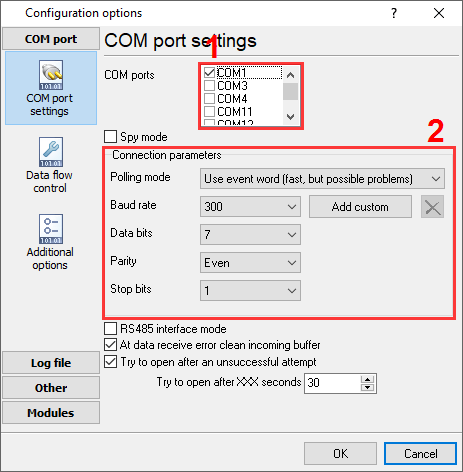
Fig. 1 COM Port settings
2. Enable the “IEC 62056-21” plugin (fig. 2).
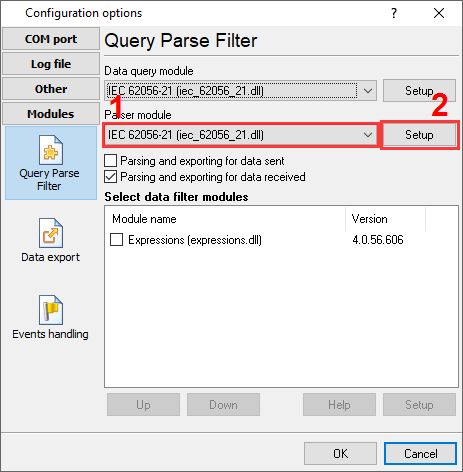
Fig. 2 IEC 62056-21 plugin
3. Configure the “IEC 62056-21” plugin by clicking the “Setup” button closely to the drop-down box (fig. 3).
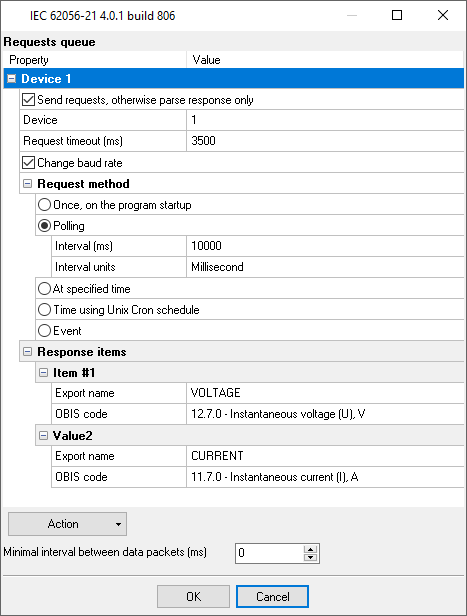
Fig. 3 Requests queue.
4. Load the queue from the attached XML file by clicking the “Action – Load” button. This queue allows reading two basic values from the device, but you may add more. Note: you may delete all response items. In this case, the program will read all possible data. Also, you may load the full configurationusing the “File – Restore configuration backup” menu item in the main window.
5. Adjust the polling interval as you want.
6. If you just want to write the parsed data to a file, then make the following changes:
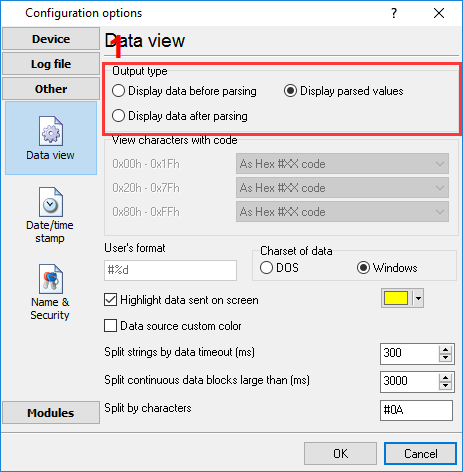
Fig. 4 Data view mode
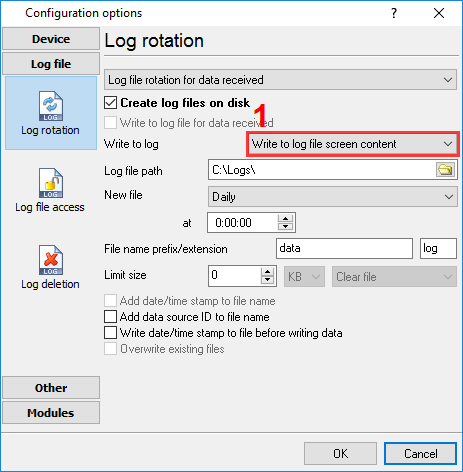
Fig. 5 Log file settings
7. If you need to write the parsed to Excel or a database, then you may continue using links below. All data export plugins use parser variables. TYou’ve defined these variables’ names in the “Export name” field (fig.3).