
If you need to write a lot of DDE items to an MSSQL database, it is not effective to create a table with a separate column for each item. Because the values of items can be modified non at the same time, which will result in entries with a lot of empty columns generated in the database.
It will be more effective to create a table consisting of three columns
CREATE TABLE [dbo].[dde_data]( [REC_ID] [int] IDENTITY(1,1) NOT NULL, [ITEM_NAME] [nchar](25) NOT NULL, [ITEM_VALUE] [nchar](255) NULL, [TIMESTAMP] [datetime] NULL ) ON [PRIMARY]ITEM_NAME – will be the name of the item;
ITEM_VALUE – will contain the string value of the item;
TIMESTAMP – will contain the date and time when the value was modified.
1. Create a new user in the database or give the permissions to write and read data from the created table to an existing user.
2. Create a group of DDE items in the program (fig. 1) with the properties shown in the picture.
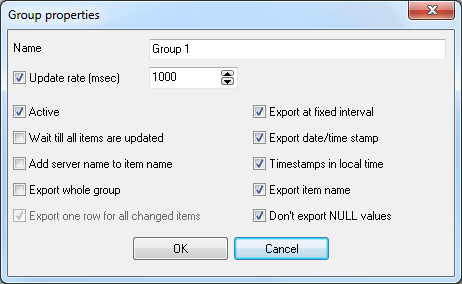
Fig. 1 Group properties
3. Add the necessary items to the group.
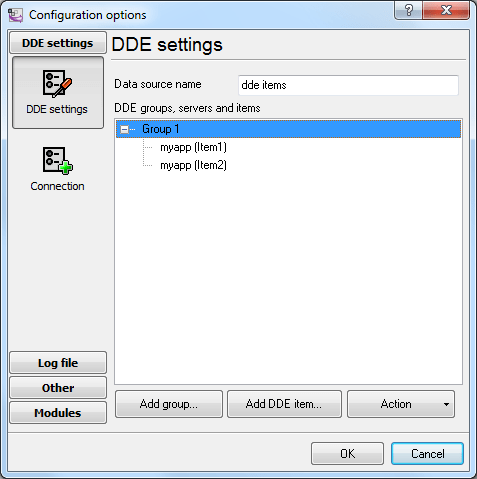
Fig. 2 Item list
4. Click OK. Data like that should appear in the main window of the program:
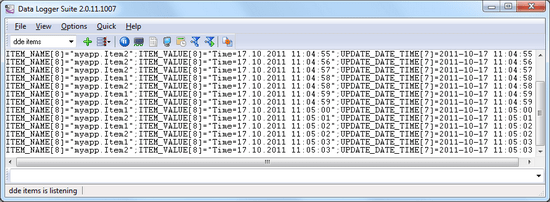
Fig. 3 Data
Every new value of DDE items appears on a new line here. Every line contains the additional “ITEM_NAME” and “UPDATE_DATE_TIME” items with the item name and timestamp, respectively.
5. Enable the parser for the data (fig. 4)
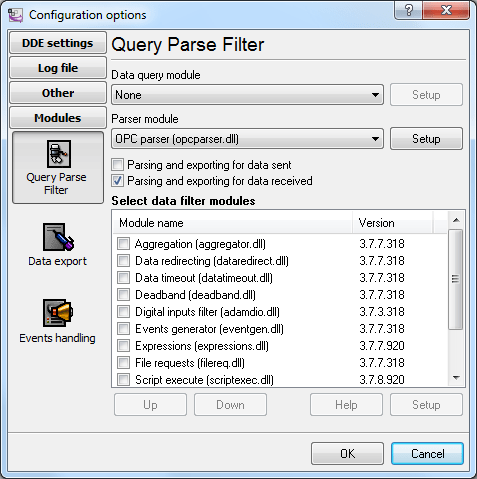
Fig. 4 Enabling the parser
6. Select the data export plug-in (fig. 5)
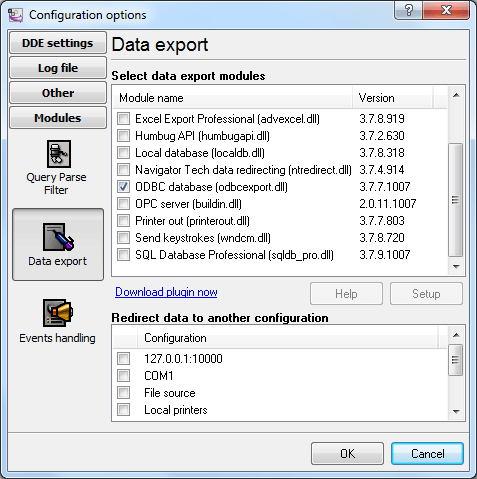
Fig. 5 Selecting the data export plug-in
7. Configure the data export plug-in (fig. 6-7)
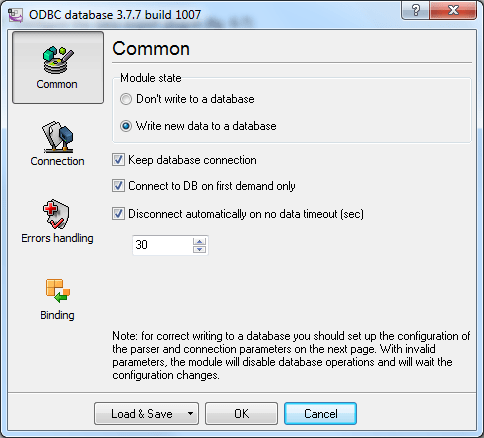
Fig. 6 Configuring the data export plug-in. General.
To set up a connection, you should create and configure the ODBC data source for connecting to your MSSQL database. Click the “Configure” button to do it. After you create the data source, click “Update” and select the data source from the list.
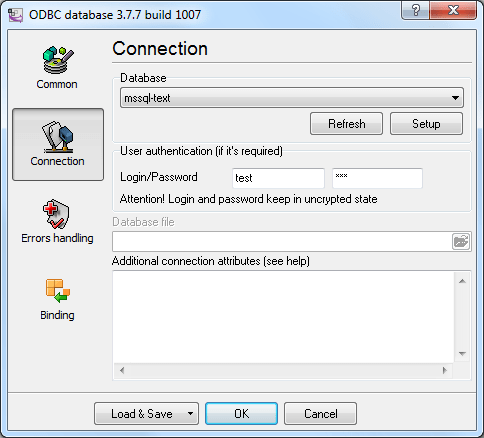
Fig. 7 Configuring the data export plug-in. Connection.
8. Binding (fig. 8) allows you to specify which data to which columns the program should add. You should specify the column name and “bind” the item to it from the main window of the program (the parser item). You should also specify the data type of the column.
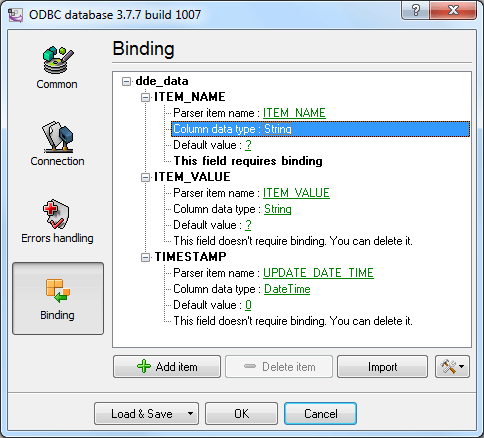
Fig. 8 Configuring the data export plug-in. Binding.
9. Click “OK” to save the changes.
10. Check the status bar to make sure the data is being successfully processed (fig. 9).
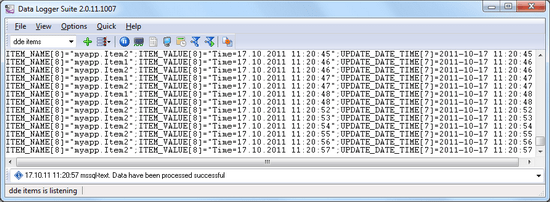
Fig. 9 A message about data being successfully written
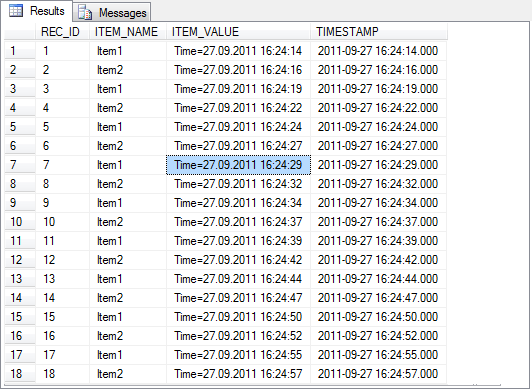
Fig. 10 Data in an MS SQL 2008 database