
0
Items : 0
Subtotal :  0.00
View CartCheck Out
Chennai
Chennai
Singapore
Mumbai
Switzerland
+91 44 4091 2000 Mon - Fri 09:00 - 18:30 766/1, TEZ, Sakthi Towers 1, Anna salai, Chennai 600 002.
+6584181583 Mon - Fri 09:00 - 18:30 68 Circular Road, #02-01, 049422, Singapore.
+91 98848 35702 Mon - Fri 09:00 - 18:30 5, Powai Lake Heights, Mumbai 400 072
+41 (0)91 225 81 00 Mon - Fri 09:00 - 18:30 Equvera - ISV Techno SAGL, Via Ligornetto 6A, 6855 Stabio, Switzerland
Ceritified
ISO 9001:2018
The Best
#1 in India
#1 in Europe
#1 in Asian-pacific
Number #1
AUTOMATION SOLUTION PROVIDER
Talk to an Expert
0
Items : 0
Subtotal :  0.00
View CartCheck Out

Saving SMS to a database with an acknowledgement

SAVING SMS TO A DATABASE WITH AN ACKNOWLEDGEMENT

There are two ways to solve this problem:

  1. Method 1 “Synchronous”. The SQL Database Pro module will be used to write data to the database. A procedure stored
    on the server that will prepare the confirmation text will be called instead of the SQL script of the INSERT type.
    The disadvantage of this method is that text messages in the queue will not be written to the database until the
    stored procedure is executed and returns a response. This method is available only when you write to databases where
    it is possible to create stored procedures (MySQL 5+,  MSSQL, Oracle).
  2. Method 2 “
    Asynchronous“. Data will be
    written to the database with the help of any method, for example, the one described in the “Writing text messages to
    the database” section. Third-party software will keep checking the table in the database for new text messages,
    generate responses and place them to a separate table. In its turn, our program will keep checking the contents of
    that table and send text messages via the GSM modem. The additional feature of this method is that it is possible to
    use different modems to receive and send text messages.
SENDING THE CONFIRMATION SMS MESSAGE SYNCHRONOUSLY
  1. You should create a stored procedure that will receive a set of parameters, perform the necessary operations and
    return the response text. You can see a sample stored procedure for SQL Express 2008 below. This simple procedure
    writes data to the table and returns “OK”. You can modify this example according to your needs. Note that you should
    give permissions to execute this procedure on the server. By default, administrator permissions are required to
    execute this procedure.
ALTER PROCEDURE [dbo].[smsack] @datetimestamp datetime, @number nvarchar(32), @sms nvarchar(1024) AS BEGIN DECLARE @result nvarchar(32); -- SET NOCOUNT ON added to prevent extra result sets from -- interfering with SELECT statements. SET NOCOUNT ON; -- insert data to table INSERT INTO SMSIN (DATE_TIME_STAMP, NUMBER, SMS) VALUES (@datetimestamp, @number, @sms); -- return acknowledgement SET @result = 'OK'; -- return result as dataset SELECT @result; END
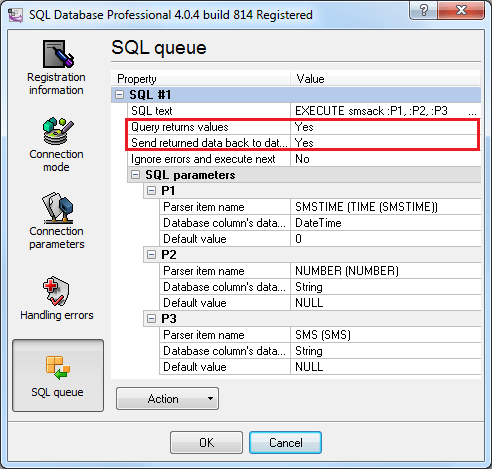
  1. Select and configure a connection in the SQL Database Pro module as described in the “Writing text messages to the
    database” section. You should specify the query calling the stored procedure instead of an SQL query of the INSERT
    type. The MS SQL query for calling the stored procedure will look like this: EXECUTE smsack :P1, :P2, :P3. You
    should link items and parameters similarly to how it is described in the “Writing text messages to the database”
    section. Additionally, you should specify two parameters as it is shown in fig. 1.

Configuring calling the stored procedureFig. 1. Configuring calling the stored
procedure
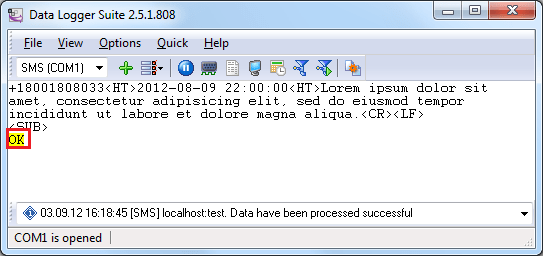
  1. Now when a text message is written to the database, a reply will be sent to the number the text message was
    received from. You can see it in the program window (fig. 2).

Reply to a SMS

Fig. 2. Reply to a text message