
Latest version:5.0.1 build 1126.November 28, 2025.
The File import module is an extension for our data loggers (e.g., Equvera CoNNeX Data Logger Suite or Equvera CoNNeX TCP/IP Data Logger). It adds a new item to the “File” menu that lets you import data from previously created log files. This is useful when you need to reprocess historical data, test a new parser configuration , or reexport old records to a databaseor other destination. The module works with any data transfer interface supported by the logger, including serial ports, TCP or UDP sockets, and virtual ports.
The module does not change how data is parsed or exported. It reuses the current configuration that is active for the chosen data source. This means that all parser settings, data extraction rules, export plugin chains, and filter conditions are applied to the imported data in the same way as to live incoming data. You can also use this behavior to validate new parsing rules on existing log files before deploying them in production.
Because the File import module reads log files and pushes their content back through the processing pipeline, it does not track which log segments have already been imported. As a result, it can process old files multiple times, but you must manage duplicates when exporting to databases or other permanent storage.
Typical scenarios for this module include recovery after a database failure, reconstruction of missing reports, loading archived log files into a new analysis configuration, or benchmarking parser performance with real historical traffic. For example, if a database was offline during the night, but the logger still wrote to text log files, you can later import those files and fill the missing period in the database. In another scenario, you may develop a new parser for a device protocol and want to run it against several megabytes of previously captured data without reconnecting to the device.
In summary, the File import module provides a straightforward way to reprocess historical log files in loggers. It lets you recover missing data, test new configurations, and rebuild exports from archived logs while keeping the workflow simple and consistent.
The figure below shows how to select the plugin on the “Modules” page.
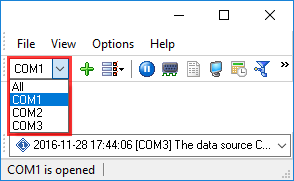
Fig.1. Selecting the plugin.
All plugins | Events notification | Internet sharing | Scheduler & Hotkeys | Logs packing and compression | Import logs with data