We’ve created a parser module that can extract data from XML data with the “JOIA” standard . The standard specification covers ophthalmic examination equipment. It is possible to handle multiple data sources such as a refractometer, keratometer, tonometer, and lensmeter.
It allows you to export data to Excel or a database easily or use our other data export plugins.
We suppose that the parser can be successfully used with other similar equipment.
The figures below show how to configure Accuref K-900. This device requires a straight RS232 cable and the “Format B” in the settings.
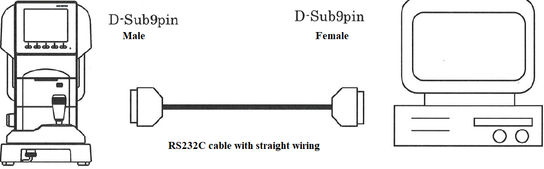
Figure.1. RS232 cable for Accuref K900
| DB9-1 | DB-2 | ||
|---|---|---|---|
| Receive Data | 2 | 2 | Receive Data |
| Transmit Data | 3 | 3 | Transmit Data |
| System Ground | 5 | 5 | System Ground |
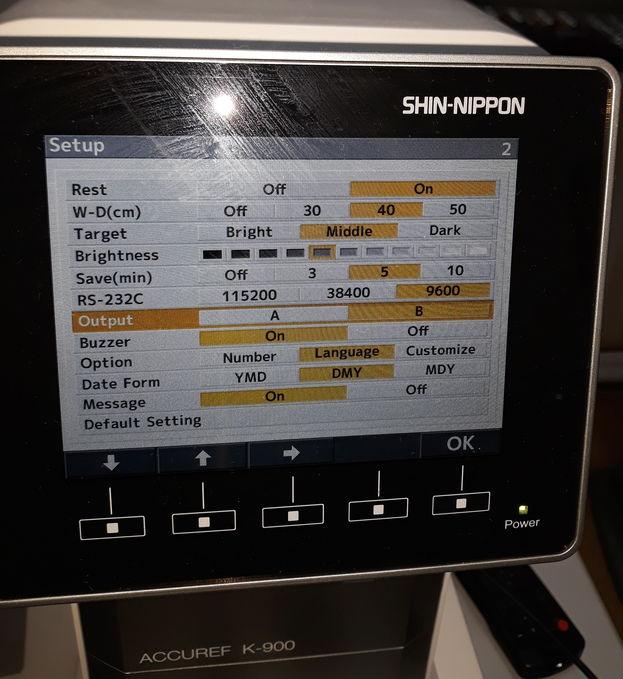
Figure.2. Accuref K900 settings
The XML data example looks like
<Ophthalmology xmlns:xsi="http://www.w3.org/2001/XMLSchema-instance"xmlns:nsCommon="http://www.joia.or.jp/standardized/namespaces/Common"xmlns:nsREF="http://www.joia.or.jp/standardized/namespaces/REF"xmlns:nsKM="http://www.joia.or.jp/standardized/namespaces/KM"xsi:schemaLocation="http://www.joia.or.jp/standardized/namespaces/Common Common_schema.xsdhttp://www.joia.or.jp/standardized/namespaces/REF REF_schema.xsdhttp://www.joia.or.jp/standardized/namespaces/KM KM_schema.xsd"><nsCommon:Common><nsCommon:Company>SHIN-NIPPON</nsCommon:Company><nsCommon:ModelName>ACCUREF K-900</nsCommon:ModelName><nsCommon:MachineNo></nsCommon:MachineNo><nsCommon:ROMVersion></nsCommon:ROMVersion><nsCommon:Version>1.2</nsCommon:Version><nsCommon:Date>2020-09-14</nsCommon:Date><nsCommon:Time>18:00:58</nsCommon:Time><nsCommon:Patient><nsCommon:No.>00002</nsCommon:No.><nsCommon:ID>0000000002</nsCommon:ID> ... <nsKM:Average><nsKM:Radius unit="mm">8.01</nsKM:Radius><nsKM:Power unit="D">42.25</nsKM:Power></nsKM:Average><nsKM:Cylinder><nsKM:Power unit="D">-1.75</nsKM:Power><nsKM:Axis unit="deg">15</nsKM:Axis></nsKM:Cylinder></nsKM:Median></nsKM:L></nsKM:KM></nsKM:Measure></Ophthalmology>
1. Equvera CoNNeX DLS . License type: Professional, Enterprise, or a trial version. 2. JOIA Data Parser plugin. 3. SQL Database Pro, the full version (purchased separately), or the trial version.
Typically, the serial port is used for connecting to the equipment. So you need to create a new configuration and configure the COM port settings (figure 3). The COM port can be either real or virtual. For example, you can obtain data via an RS232-to-USB adapter. The connection parameters depend on equipment settings.
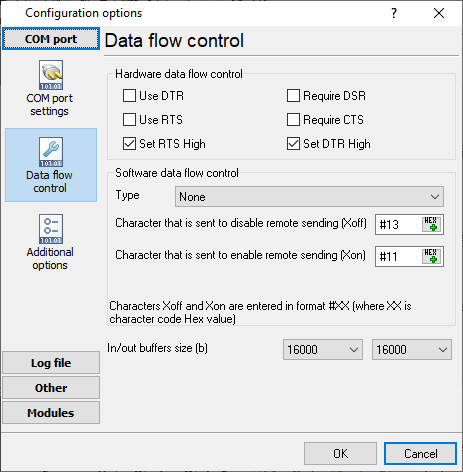
Figure 3. COM port settings
You need to select the JOIA module as a parser (figure 4). You may download the JOIA parser here if it does not exist in the list. You don’t need to configure any additional settings for the parser.
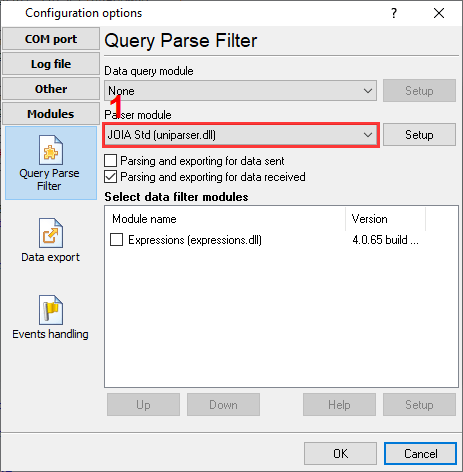
Figure 4. Select a parser
For example, here, you can see how you can export data to an MS SQL database running on the same computer.
Before you can do that, you need to use SQL Server Management Studio to create a database table. Possibly, you will also want to create a separate database. You can download a sample SQL script for creating a database table from here.
Then you need to enable the SQL Database Pro data export module (figure 5) and configure the database connection (figure 6).
After that, add an SQL query for writing data to the queue and bind parser variables to the SQL query parameters (figure 7). You can download a sample SQL script for inserting data from here or load a preconfigured queue from the file.
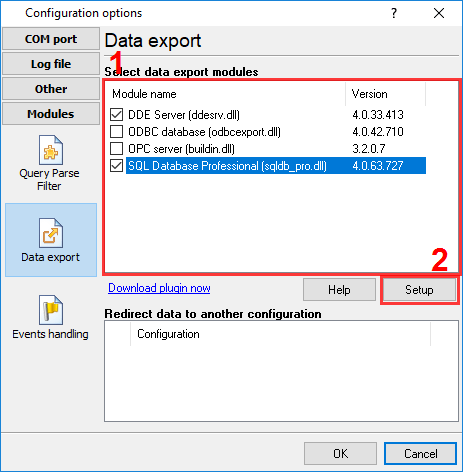
Figure 5. The data export module
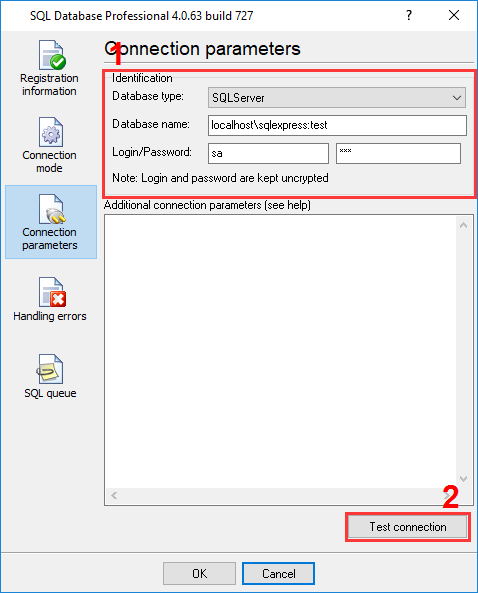
Figure 6. Connection settings
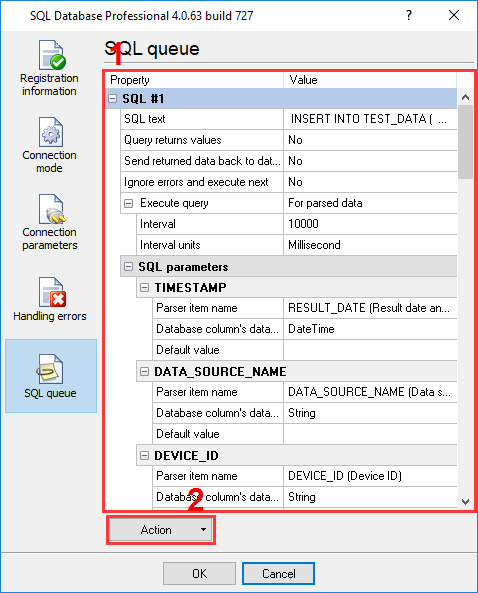
Figure 7. SQL queue
Then save all the changes (click “OK” in each settings window, which will also close the window).
You may download the backup copy of this configuration here and restore it from the “File” menu in the main window.