
Problem:
We need to get data from the database and present them as an OPC server.
Option 1: One column in the database table contains the name of the tag group, the second column contains the first value of the group, and the third column contains the second value of the group.
Option 2: One column in the database table contains the name of the OPC tag group, the second column contains the tag name, and the third column contains the tag value.
Terms of reference:
To solve the problem, we are going to use Equvera CoNNeX DLS Enterprise or its trial version. All the necessary modules are provided with the main program. You don’t need to install anything else.
1. You need to create a new configuration with the “SQL interface” data source. To do it, click the green-plus button in the main window of the program; when a dialog box appears, select “SQL interface” (figure 1).
2. Configure the database connection settings (figure 2).
3. Enter the name of the database table or write an arbitrary SQL query (figure 3).
4. Specify the frequency of data reading from the database.
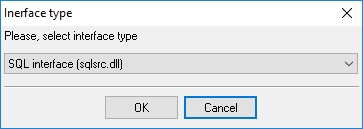
Figure 1: Adding a data source
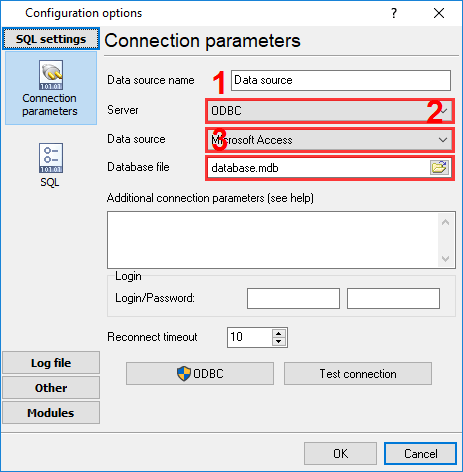
Figure 2: Configuring the database connection
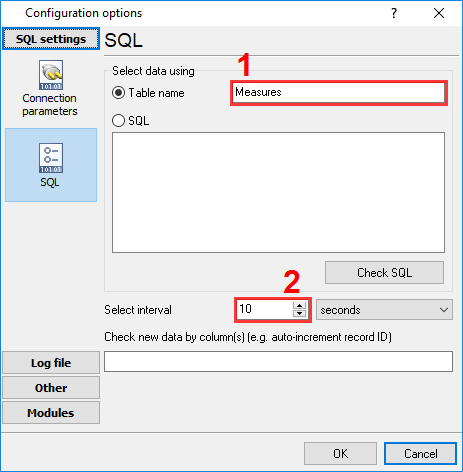
Figure 3: Configuring the SQL data source
2.1 Go to the “Modules – Query Analysis Filtering” tab (figure 4) and select “OPC parser” in the drop-down list.
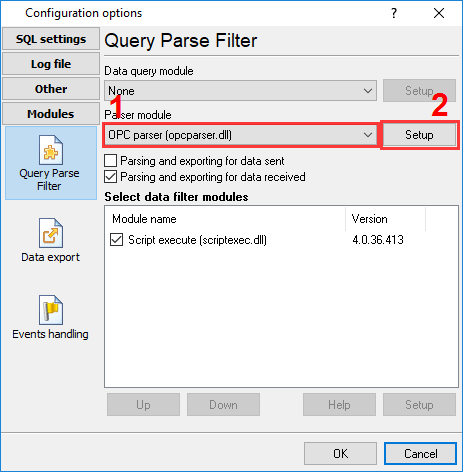
Figure 4: Selecting the parser
2.2 Go to the “Modules – Data export” tab (figure 5) and check the checkbox next to “OPC server” in the list.
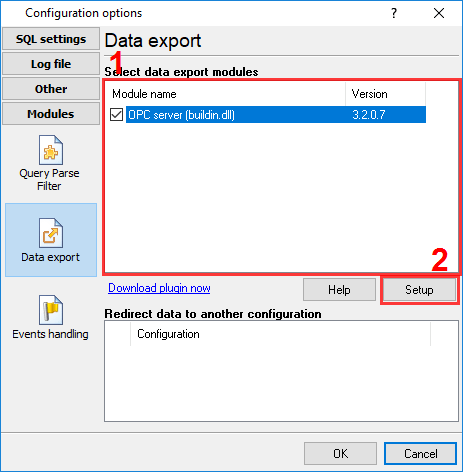
Figure 5. Selecting the data export module
2.3 Double-click the “OPC server” module name; when a dialog box appears, select “Ungrouped”, click “OK” (figure 6).
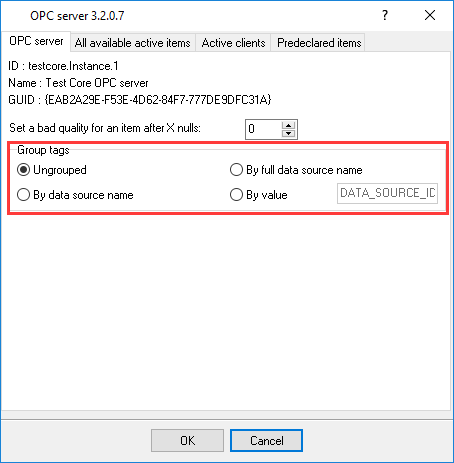
Figure 6: Disabling data grouping
By default, the program uses the name of the column in the database table as the OPC tag name. So you need to add a small script to convert the data to the necessary format.
3.1 Go to the “Modules – Query Parse Filter” tab (figure 7) and check the checkbox next to “Script Execute” in the data filtering modules list.
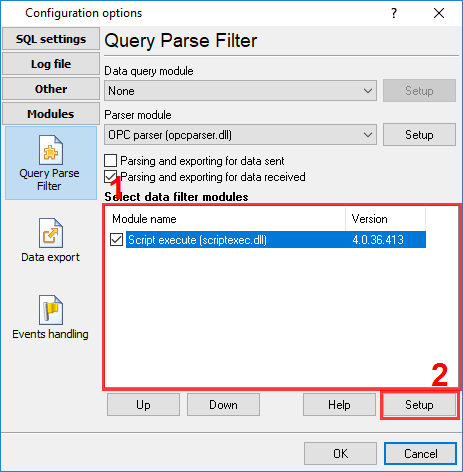
Figure 7: Selecting the data filter module
3.2 Double-click the “Script Execute” module name; when a dialog box appears, copy the script (see below) and paste it into the text entry field in the dialog box. You need to change the values of the following variables: sColName, sColValue1, and sColValue2. Specify the names of the columns that contain the tag name, the first value, and the second value, respectively (figure 8).
var v:double; strName: string; sColName:string = 'ItemName'; sColValue1:string = 'VolAll'; sColValue2:string = 'LevelAll'; begin // checks a variable in a data packet if IsVariableDefined(sColName) then begin strName := GetVariable(sColName); // first value if IsVariableDefined(sColValue1) then begin v := GetVariable(sColValue1); SetVariable(strName + '.' + sColValue1, v); end; // second value if IsVariableDefined(sColValue2) then begin v := GetVariable(sColValue2); SetVariable(strName + '.' + sColValue2, v); end; end; end.
var v:double; strName: string; sColName:string = 'ObjName'; sColName2:string = 'TagName'; sColValue1:string = 'LevelAll'; begin // checks a variable in a data packet if IsVariableDefined(sColName) and IsVariableDefined(sColName2) then begin strName := GetVariable(sColName) + '.' + GetVariable(sColName2); // value if IsVariableDefined(sColValue1) then begin v := GetVariable(sColValue1); SetVariable(strName + '.' + sColValue1, v); end; end; end. |
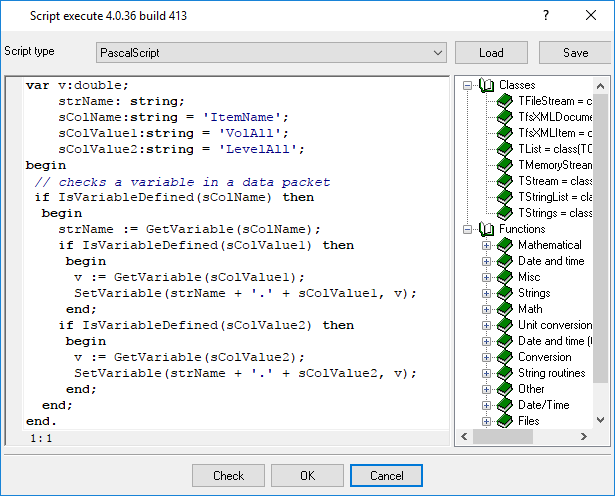
Figure 8: The script
3.3 Click “OK” and close the “Script Execute” window.
3.4 Click “OK” in the remaining window and save all the settings.
Done! Now you can use the OPC client to connect to the dataloggersuite.Instance.1 OPC server and check the result.
By default, the OPC server generates the tag list only after reading the tags from the database. So if the OPC server
is launched by the OPC client, the server may not have enough time to read the data from the database and generate the
tag list when the OPC client requests it.
To avoid this problem, you can declare all tag names on the OPC server in advance.
4.1 After configuring the program, wait for the data to be read from the database.
4.2 Go to the “Modules – Data export” tab and double-click the “OPC server” module name (you have already enabled
this module).
4.3 When a dialog box appears, select the “In advance” tab and click the “Import all” button. All tag names will
appear in the list. Click “OK” in all windows and save the settings (figure 9).
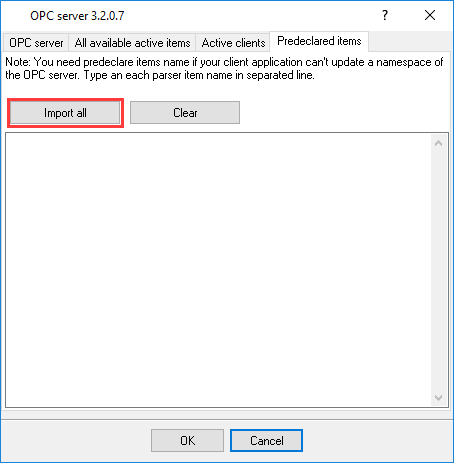
Figure 9: The tag name list
The Microsoft Access database file used in this example you may download here.
You may download the backup copy of this configuration here and
restore from the “File” menu in the main window.