
Task:
I have a piece of equipment that transmits serial data to a terminal program (data showed below), in this data is the position of the data on the screen, followed by the actual data. I want only to save the data (marked by red color) and not the positional information, can this be done (data blocks separated by green color)? Also, can the data be sent directly to Excel?
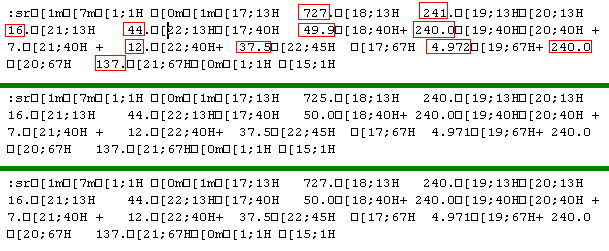
Fig.1. Serial data captured
Requirements:
It is assumed that:
You’ve configured communication parameters (baud rate, the number of data bits, flow control, etc.) in the data logger and can receive any data without communication errors.
Solution:
The image above shows that the data flow contains non-printable characters (squares on the image above) and doesn’t show ending characters of a data packet. We need to recognize the ending characters of each data record. Please, enable display output for non-printable characters with a character code below than 0x20h. Please, set the following options.
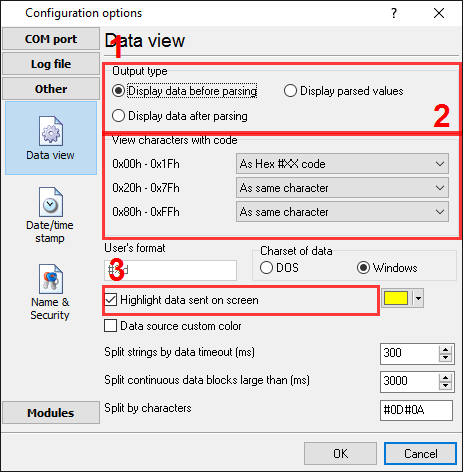
Fig.2. Serial data view setup
Then enable the “Wrap words” option (fig.3), because a data block is very large and doesn’t fit in the program window. You can open the dialog window below by selecting the “Options – Program options” menu item.
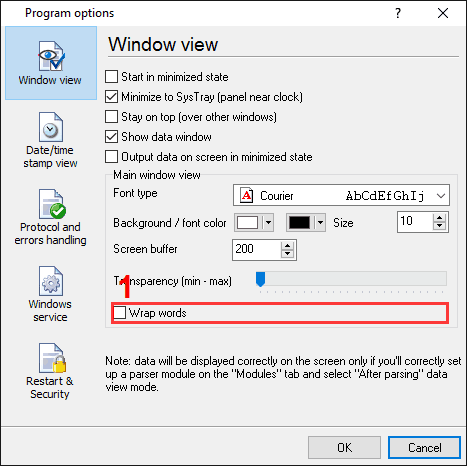
Fig.3. Data logger window view
Then click the “OK” button and try to receive data from a port. You should receive the data as in the figure below.
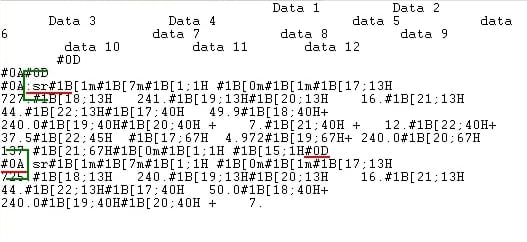
Fig.4. Data logger. Data received.
It is a different view of the data received. Notice that all non-printable characters were replaced with their code i.e., #1B. It is clear from the data screen above that the data block (within green brackets) starts with “:sr#1B” and ends with #0A#0D#0A (underlined by red). In this example, our data block contains two parts, namely, 1 and 2. Part #2 was adjusted to the width of the window. Both of these parts should be interpreted as a single whole.
We are now ready to configure the modules. First, select the “ASCII data query and parser” plugin (Fig.5, pos. #1) from a drop-down list. Then, enable a parsing option for data received (fig. 5a, pos. 2) and select necessary data export plugins. The DDE server (fig.5b, pos.3) will help us to check that the data packet is parsed and exported. The “Local database” plugin will create Microsoft Excel files.
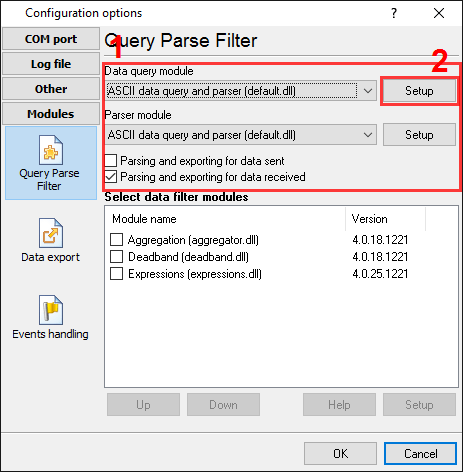
Fig.5a. Data logger. The data parser plugin setup.
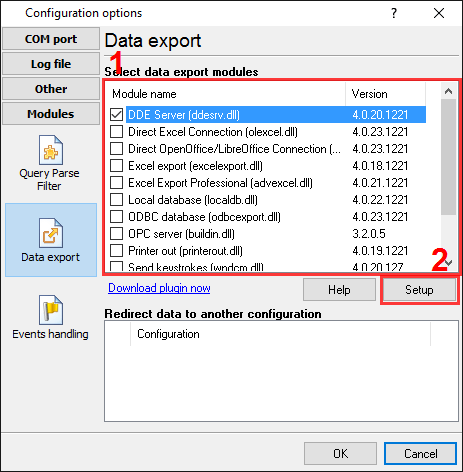
Fig.5b. Data logger. Data export plugins setup.
Please open a configuration window of the ASCII parser and query plugin by clicking the “Setup” button near the drop-down box (fig.5a, pos.1). The dialog window will be shown on the desktop (fig.6).
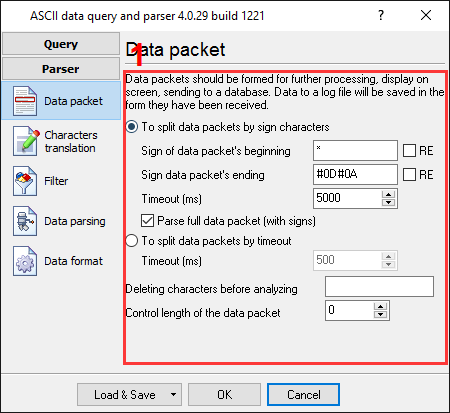
Fig.6. Data logger. The data parser configuration window.
The configuration process should be very simple if you have examined your data flow in the data logger window (Fig.4). You should type in the same as in the data logger window in fields 1 and 2. Field #1 marks the beginning of the data block, and field #2 marks the end. The values to be typed in here are as underlined in red in Fig.4 above. You should specify a timeout value in field #3, which will be used if the module will not receive ending characters in the specified interval.
Because our data flow contains data packets, that we don’t want to export, then we’ve added two filter rules (fig.7). You can add new rules by clicking the “Add item” button. In our case, we are excluding all data packets that contain strings “Data” or “data” (characters case is important in the “Expression” field).
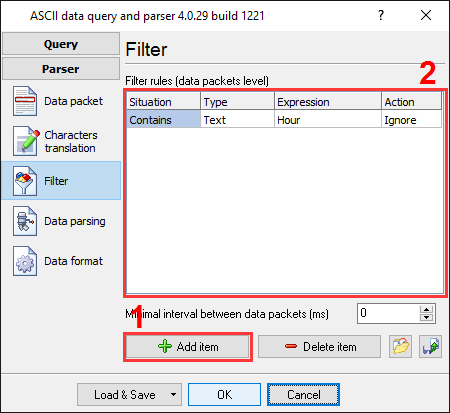
Fig.7. Data logger. Filter rules.
The next page is a very important part of the parser configuration. The data parser uses this information for data extraction from the data packet. In the example, the data block contains few data items (see fig.1), namely: Date 1-Date 12, which should be separated out to different variables. Later, these variables will be used in the data export and will be placed on different columns of our Excel spreadsheet.
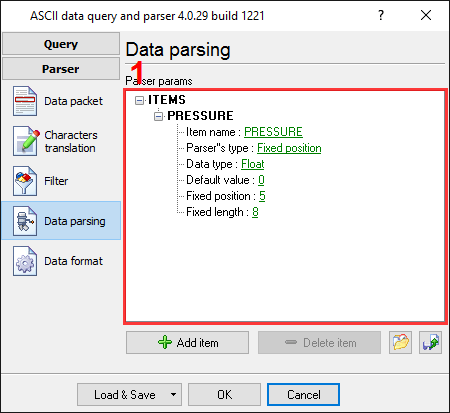
Fig.8. Data logger. Parser items.
Any new items may be added by clicking the “Add item” button (pic.8, pos. 7). Before adding an item, the program will ask you about an item description. You can type any characters here, which will help you to remember a variable’s content. We’ve added all 12 items with descriptions from Data 1 to Data 12.
Each parser item has several properties:
All other items have the same parameters, and just the entrance position is different. In this example, this value from the range of 1 to 12.
In the next tab, you can specify basic format options as per (pic.9). If you had specified the data type “String” in the item’s parameters, then the first two options allow you to remove blank spaces from a value.
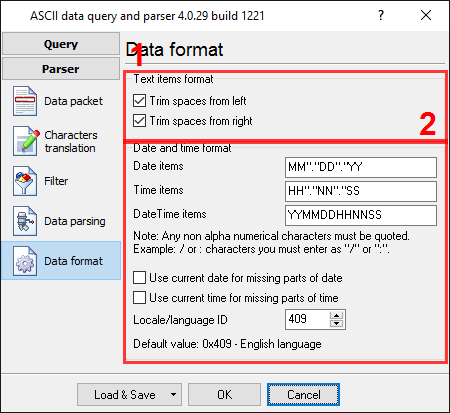
Fig.9. Data logger. Format of items.
Other options are unnecessary in our case because all our items have the string data type.
Click the “OK” button and close the parser configuration window and then click the “OK” button in the options window.
Now that our parser is ready, it is time for testing it. Connect your device and power it on if necessary. Check to see if you can receive a data block from the specified serial port. If the parser had been correctly set up, you should see all parser items with their values (fig.10) in the DDE server window below.
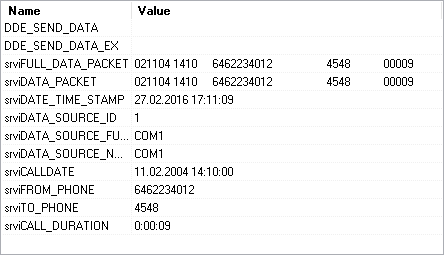
Fig.10. Data logger. DDE server window.
All parser items are now ready for export to an Excel spreadsheet. You can read about it in the second part.