
0
Items : 0
Subtotal :  0.00
View CartCheck Out
Chennai
Chennai
Singapore
Mumbai
Switzerland
+91 44 4091 2000 Mon - Fri 09:00 - 18:30 766/1, TEZ, Sakthi Towers 1, Anna salai, Chennai 600 002.
+6584181583 Mon - Fri 09:00 - 18:30 68 Circular Road, #02-01, 049422, Singapore.
+91 98848 35702 Mon - Fri 09:00 - 18:30 5, Powai Lake Heights, Mumbai 400 072
+41 (0)91 225 81 00 Mon - Fri 09:00 - 18:30 Equvera - ISV Techno SAGL, Via Ligornetto 6A, 6855 Stabio, Switzerland
Ceritified
ISO 9001:2018
The Best
#1 in India
#1 in Europe
#1 in Asian-pacific
Number #1
AUTOMATION SOLUTION PROVIDER
Talk to an Expert
0
Items : 0
Subtotal :  0.00
View CartCheck Out

How to display serial port’s incoming data on a dashboard

HOW TO DISPLAY SERIAL PORT’S INCOMING DATA ON A DASHBOARD

Problem scenario:

I want to parse incoming data string into different variables and then have a dashboard with gauges, indicators, charts, etc.

Requirements:

  • OPC Server

It is assumed that:

You’ve created a configuration using the “Green Plus” button in the main window and configured communication parameters (baud rate, the number of data bits, flow control, etc.) in the data loggerand can receive any data without communication errors.

Solution:

GENERAL DESCRIPTION

You may combine our two software products: Data Logger Suite and OPC Scada Viewer. The data logger will receive, process, parse incoming data, and export it using the built-in OPC server. It will allow you to get real-time data in any OPC compatible software. OPC Scada Viewer can visualize data from any OPC DA and DA2 server.

RS232 DATA PARSING

First of all, you need to configure a parser. The parser will parse incoming data string into different variables.

Say, for example, you have configured a parser to extract one floating-point value with the “VALUE1” name.

ACTIVATING THE BUILT-IN OPC SERVER

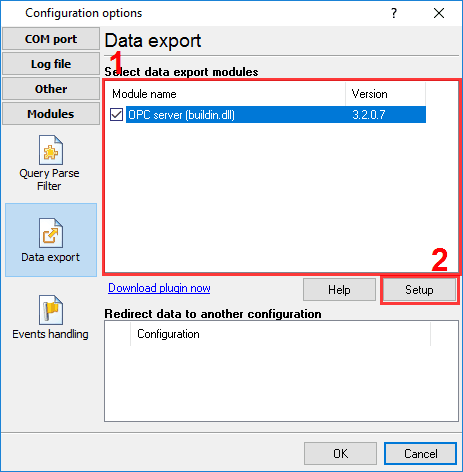
You need to enable the OPC server plugin on the “Data export” page (fig.1).
 

Enabling the OPC server for RS232 data

Fig.1. OPC server plugin

CONFIGURING THE OPC SERVER

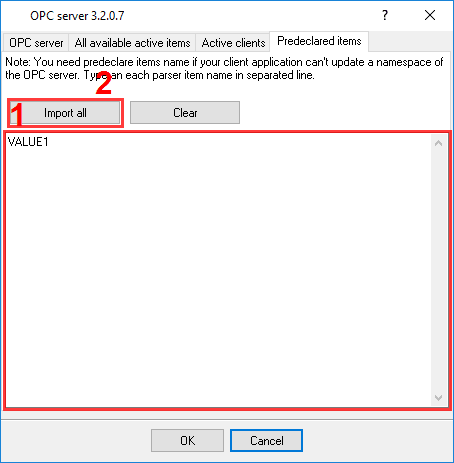
Please, open a configuration window of the OPC serverplug-in (click the “Setup” button near a drop-down box fig. 1, pos.2). The dialog window will appear on the desktop (fig. 2).
 

OPC settings

Fig.2. OPC settings

  1. Specify names of your parser items (one per row);
  2. You may also try to import all names from the parser automatically. Note: some parsers do not allow import names. In this case, specify all names manually.
CONNECTING TO THE OPC SERVER

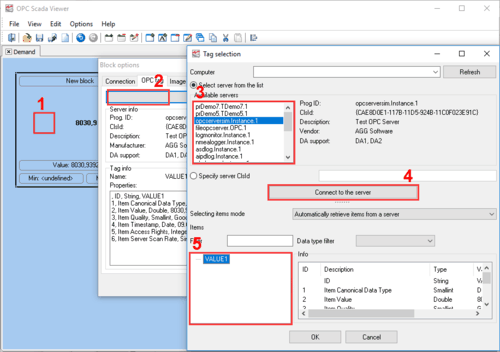
Please, verify that you have configured DCOM as described. Launch the OPC Scada Viewer software (fig. 3).
 

OPC Scada Viewer settings

Fig.3. Adding a visualization block

  1. Add a page and visualization block;
  2. Go to the “OPC tag” page and click the “Select…” button;
  3. Select the “asdlog” server and connect to the server;
  4. Select your variable name from the list;
  5. Click the “OK” button.

Go to the “Image options” page (fig. 4).
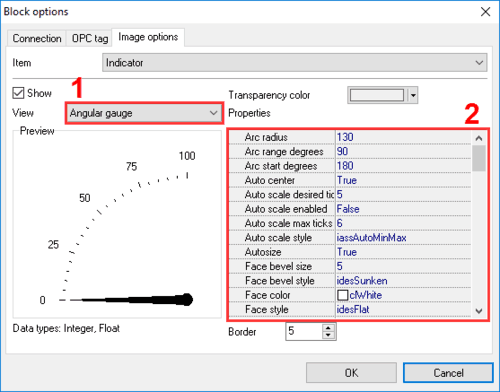
  1. Select a necessary indicator type;
  2. Configure properties.


Visualization indicator type

Fig.4. Indicator

RELATED ARTICLES: HOW TO DISPLAY SERIAL PORT’S INCOMING DATA ON A DASHBOARD