
The LLRP Reader Protocol module can generate two types of internal events (Figure 17) in the following cases:
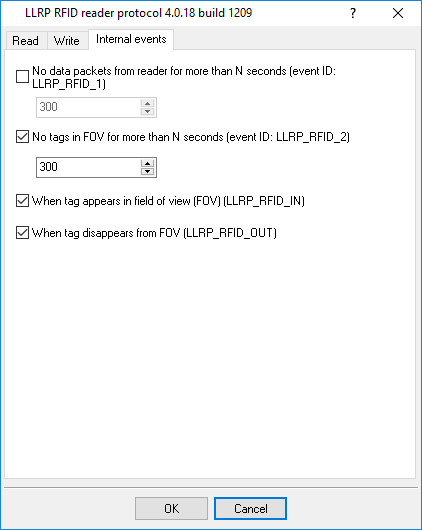
Figure 17: Internal events
When a predefined situation is detected, an internal event with the respective identifier will be generated. You can process the internal event using the modules on the “Event processing” tab. Below you can see an example of configuring the “Events notification” module to send an email message upon processing the LLRP_RFID_2 internal event.
1. Select an event handling module (Figure 18).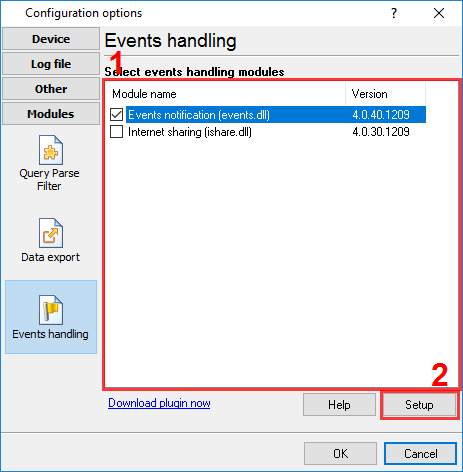
Figure 18: Selecting an event handling module
2. Add an event handler (Figure 19).
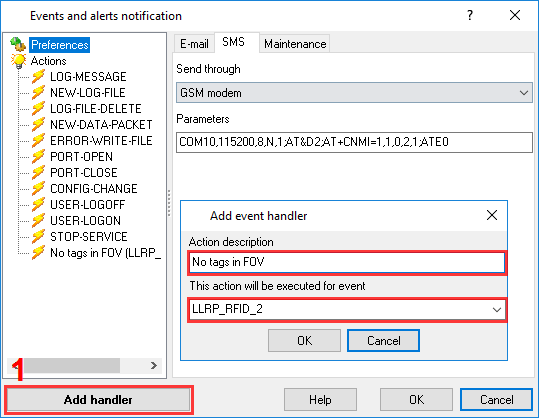
Figure 19: Adding a handler
3. Select the newly added handler in the left-side tree (Figure 20) and configure the notification parameters. In this case, it is sending an email message.
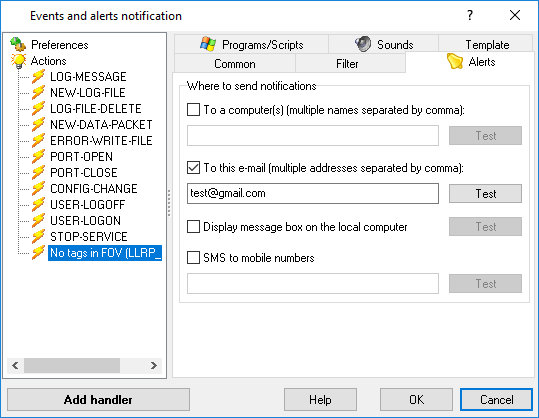
Figure 20: Event handling parameters
4. Configure the SMTP server parameters, which will be used by the application to send email messages (Figure 21). In the figure below, you can see an example of Gmail.
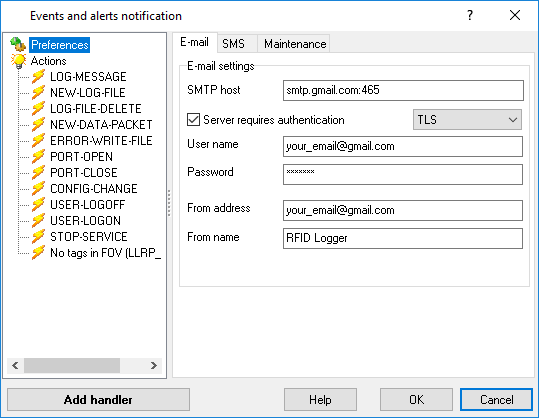
Figure 21: Configuring the SMTP server parameters
If needed, create a message template for the handler (Figure 22). You can use special tags (Table 3) in the template body. When sending a message, the tags will be replaced with the corresponding values.
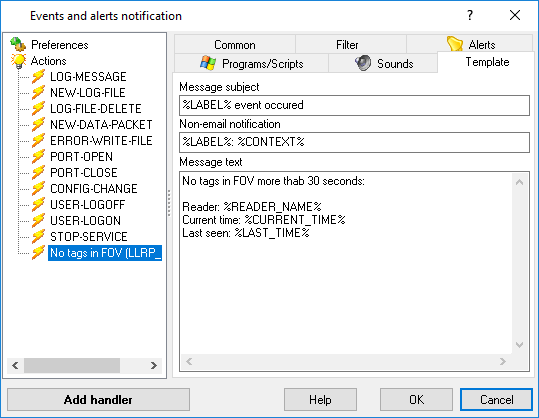
Figure 22: Configuring a message template
| Table 3 | |
|---|---|
| Tag | Description |
| %READER_NAME% | The reader’s IP address and port, and also the reader’s user name (if specified in the settings) |
| %READER_NAME_SHORT% | The reader’s IP address |
| %LAST_TIME% | The last time when any data were received |
| %CURRENT_TIME% | The time when an event was generated |
Note:For the LLRP_RFID_IN and LLRP_RFID_OUT events, you can also use the variables from Table 1.
Enclose each variable in the % signs (for example, %TAGREPORTDATA_EPCDATA%).