
Excel has built-in tools for getting DDE data. All you have to do is specify the formula like this for a cell:
=myserver|mytopic!myDDEitem
where:
myserver – DDE server name;
mytopic – topic name;
myDDEitem – DDE item name.
Once the item is updated on the server, it will be automatically updated in Excel.
This method has a few drawbacks
Our program offers an alternative way to generate files that can be opened in Excel and that will contain the history of value changes.
1. You should add the necessary DDE items the way it is described in the ” Writing DDE to MSSQL” section (fig. 1-3)
2. Enable writing the received data to a log file of the CSV format (fig. 1). By default, the program generates files in the Excel format. You can customize the format of the CSV file if you click the “Advanced” button.
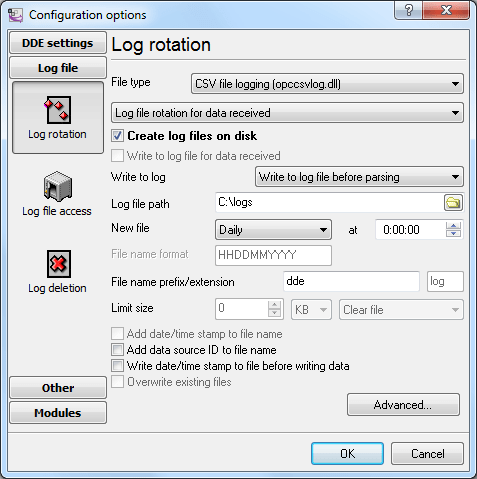
Fig. 1 Configuring the log file
Note 1. You should take into account that the “C:\logs” folder must be available for writing. Do not try to write log files to the root folder of the C:\ drive, the “Program Files” folder of the “Windows” folder. Starting from Windows Vista, only the Administrator can write to them.
Note 2. If you use the program as a Windows service, by default the service will be run by the system account that has restricted permissions to create and write files.